Showing posts with label tutorial. Show all posts

Saturday, October 28, 2006

IronPython and ADO.NET Part 2

This is the second in a series of posts about database access with IronPython and ADO.NET. This post will discuss connecting to the database and executing basic DDL and SQL statements via the Python DB-API instead of directly accessing ADO.Net. So that the examples can run on Windows and non Windows systems, they will support either SQLite3 via the Mono.Data.SQLiteCilent ADO provider or Microsoft Access via the System.Data.Odbc provider.

The Python DB-API is a specification created by the Python Database SIG for a consistent interface to relational databases. For CPython there is at least one DB-API compliant library for most of the relational database engines that are used today. As part of his fepy project, Seo Sanghyeon has created a set of wrappers that provide DB-API support for MySQL, PostgreSql, SQLite, Microsoft SQL Server and ODBC ADO.NET database drivers. Since one of the features of ADO.Net is to also provide a consistent interface to relational databases, you may question why do you need to use another layer for database access with IronPython. The answer is simple, the DB-API allows you to focus on the actual access and manipulation of the data and hides the low-level ADO.Net setup and management code. To show how the DB-API can simpify your IronPython code, the examples from the first post of this series have been modified to use the DB-API.

If you want try the example or use the DB-API with IronPython you will need to install it. You can either download the modules from here and copy to the IronPython Lib directory or build and/or install the IronPython Community Edition which includes the DB-API.

Creating a table example

The first section of code is only required so the examples will work on either *ix or windows platforms. In normal usage, there is no need to import dbapi.py directly, just import the DB-API module for the database you want to use.
import dbapi
try:
import sqlite3 as db
dbapi._load_type(db.assembly,db.typename)
connectstr = 'ip2country.db'
ip2country_create_table_ddl = '''
CREATE TABLE ip2country (
ipfrom INTEGER,
ipto INTEGER,
countrycode2 CHAR(2),
countrycode3 CHAR(3),
countryname VARCHAR(50),
PRIMARY KEY (ipfrom,ipto)
)
'''
except:
import odbc as db
dbapi._load_type(db.assembly,db.typename)
connectstr = 'DSN=ip2country'
ip2country_create_table_ddl = '''
CREATE TABLE ip2country (
ipfrom DOUBLE,
ipto DOUBLE,
countrycode2 CHAR(2),
countrycode3 CHAR(3),
countryname VARCHAR(50),
CONSTRAINT ip2country_pk PRIMARY KEY (ipfrom,ipto)
)
'''

Comparing this code with the ADO.Net example you see that the opening of the database connection, and create a command instance is automatically done by the DB-API module. The Python DB-API PEP specifies implicit transactions that are started automatically and committed or rolled back on demand, so compared to ADO.Net example , a commit is required.
dbcon = db.connect(connectstr)

cursor = dbcon.cursor()

cursor.execute(ip2country_create_table_ddl)

dbcon.commit()

dbcon.close()

Load the data example.

Compared to the ADO.Net example, the DB-API allows the IronPython code to be simpler as it handles the creation of Parameters. (Note to self: MS Access, bulk inserts and transactions == very slow)
dbcon = db.connect(connectstr)

import re
re_csv = re.compile(',(?=(?:[^\"]*\"[^\"]*\")*(?![^\"]*\"))')

cursor = dbcon.cursor()
insert_statement= '''
INSERT INTO ip2country (
ipfrom, ipto, countrycode2, countrycode3, countryname
) VALUES ( ?,?,?,?,? )
'''

f = open("ip-to-country.csv")
print "Loading..."
for line in f.readlines():
if line.endswith("\r\n"):
line = line[:-2] # remove \r\n
else:
line = line[:-1] # just remove \n
print line
ipf, ipt, cc2, cc3, cn = re_csv.split(line)
cursor.execute(insert_statement,(ipf[1:-1],ipt[1:-1],cc2[1:-1],cc3[1:-1],cn[1:-1]))
dbcon.commit()

f.close()
dbcon.close()

Select some data example.

Instead of using the ExecuteReader as in the ADO.Net example, the fetch method of the cursor instance is used to get the query result.
def ip2number(ipaddress):
'''
Convert dotted IP address to number
'''
A,B,C,D = ipaddress.split(".")
return (int(A) * 16777216) + (int(B) * 65536) + (int(C) * 256) + int(D)

dbcon = db.connect(connectstr)

cursor = dbcon.cursor()

try:
ipaddress = sys.argv[1]
# Convert dotted ip address to number
ipnumber = ip2number(ipaddress)
except:
print "Error - An IP Address is required"
sys.exit(1)

select_statement = '''SELECT * FROM ip2country
WHERE ipfrom <= %s AND ipto >= %s
''' % (ipnumber, ipnumber)

cursor.execute(select_statement)

row = cursor.fetchone()
print "The location of IP address %s is %s." % (ipaddress, row[4])

dbcon.close()

Tuesday, September 05, 2006

IronPython and ADO.NET Part 1

This is the first in a series of posts about database access with IronPython and ADO.NET. This post will discuss connecting to the database and executing basic DDL and SQL statements. So that the examples can run on Windows and non Windows systems, they will support either SQLite3 via the Mono.Data.SQLiteCilent ADO provider or Microsoft Access via the System.Data.Odbc provider.

Firstly we need some data to play with. A number of Python Web frameworks have been adding support for displaying the flag of the country against weblog comments. The country is identified from the remote IP address of the users browser. So we use IronPython to create a table and load it with the data from the ip-to-country cvs file which can be download from here. The full source of the IronPython script is here.

Creating a table


The first section of code references and imports the assemblies required for connecting and accessing the database. So the script can support either SQLite or Access, it tries to reference and import the SQLite ADO provider first, if this fails it then attempts to import the ODBC provider. The scripts uses an import alias so that we can refer to the database connection method by the same name independant of what ADO provider is being used. Also the database specific connection strings and table creation statements are defined here.

import clr
import System
clr.AddReference("System.Data")
import System.Data
try:
clr.AddReference("Mono.Data.SqliteClient")
from Mono.Data.SqliteClient import SqliteConnection as dbconnection
connectstr = 'URI=file:ip2country.db,version=3'
ip2country_create_table_ddl = '''
CREATE TABLE ip2country (
ipfrom INTEGER,
ipto INTEGER,
countrycode2 CHAR(2),
countrycode3 CHAR(3),
countryname VARCHAR(50),
PRIMARY KEY (ipfrom,ipto)
)
'''
except:
from System.Data.Odbc import OdbcConnection as dbconnection
connectstr = 'DSN=ip2country'
ip2country_create_table_ddl = '''
CREATE TABLE ip2country (
ipfrom DOUBLE,
ipto DOUBLE,
countrycode2 CHAR(2),
countrycode3 CHAR(3),
countryname VARCHAR(50),
CONSTRAINT ip2country_pk PRIMARY KEY (ipfrom,ipto)
)
'''
The last section of the script, connects to the database, opens the connection and creates the table ip2country using the database specific DDL.

dbcon = dbconnection(connectstr)

dbcon.Open()

dbcmd = dbcon.CreateCommand()
dbcmd.CommandText = ip2country_create_table_ddl

dbcmd.ExecuteNonQuery()

dbcon.Close()
So once you run the script, you will either have an SQLite database ip2country.db or Access database ip2country.mdb with a single empty table called ip2country.

Load the data


The full source of the IronPython script for loading the CSV data can be found here. We use the same code from the previous script to setup access to the data. The ip-to-country.csv file contains data of the following format:

"33996344","33996351","GB","GBR","UNITED KINGDOM"
"50331648","69956103","US","USA","UNITED STATES"
"69956104","69956111","BM","BMU","BERMUDA"
To parse each line of the csv file, a regular expression is used.
import re
re_csv = re.compile(',(?=(?:[^\"]*\"[^\"]*\")*(?![^\"]*\"))')
Rather than dynamically creating the SQL insert statement using string concatenation, the script uses variable placeholders in the insert statement and data parameters. In theory, this should be more efficent with the database only needing to prepare the insert statement once, and then binding the data parameters on each insert. But not sure if SQLite or Access does this type of optimisation. At least it means there will be no problems with country names like COTE D'IVOIRE that contain quotes.

dbcmd = dbcon.CreateCommand()
insert_statement= '''
INSERT INTO ip2country (
ipfrom, ipto, countrycode2, countrycode3, countryname
) VALUES ( ?,?,?,?,? )
'''
# Create empty parameters for insert and attach to db command
p1 = dbparam()
dbcmd.Parameters.Add(p1)
p2 = dbparam()
dbcmd.Parameters.Add(p2)
p3 = dbparam()
dbcmd.Parameters.Add(p3)
p4 = dbparam()
dbcmd.Parameters.Add(p4)
p5 = dbparam()
dbcmd.Parameters.Add(p5)

dbcmd.CommandText = insert_statement

Next the script opens the csv file and reads it line by line. After removing the line separator(s), the line is split into individual fields using the compiled regular expression. The value of each field is then assigned to the insert parameter with the delimiting double quotes removed. And the data is inserted into the ip2country table by calling the ExecuteNonQuery Method.
f = open("ip-to-country.csv")
print "Loading..."
for line in f.readlines():
if line.endswith("\r\n"):
line = line[:-2] # running on a posix platform so remove \r\n
else:
line = line[:-1] # must be windows, just remove \n
print line
ipf, ipt, cc2, cc3, cn = re_csv.split(line)
p1.Value = ipf[1:-1]
p2.Value = ipt[1:-1]
p3.Value = cc2[1:-1]
p4.Value = cc3[1:-1]
p5.Value = cn[1:-1]
dbcmd.ExecuteNonQuery()

f.close()
dbcon.Close()


To run the script the ip-to-country.csv file must be in the current directory, and since it contains 65,000+ lines of data, it will take a while to run.
ipy.exe load_op2country.py

Select some data


Now the ip2country table should contain some data we can query. Let's create a simple script that when passed an IP address, it prints the country location of the IP address. The source of the script can be found here.
To find the location, the script first converts the IP address to the numeric equivalent used in the ip2country data using the function ip2number. A SQL select statement is defined using the numeric ip address as the bounds for the where clause. Then an ExecuteReader instance is created and the results processed in a while loop.
dbcon.Open()

dbcmd = dbcon.CreateCommand()

try:
ipaddress = sys.argv[1]
# Convert dotted ip address to number
ipnumber = ip2number(ipaddress)
except:
print "Error - An IP Address is required"
sys.exit(1)


dbcmd.CommandText = '''
SELECT * FROM ip2country
WHERE ipfrom <= %s
AND ipto >= %s
''' % (ipnumber, ipnumber)


reader = dbcmd.ExecuteReader()

while reader.Read():
print "The location of IP address %s is %s." % (ipaddress, reader[4])

reader.Close()
dbcon.Close()

The country name is accessed from row result by column number. I would prefer to get the value of the column via it's name e.g.
print "The location of IP address %s is %s." % (ipaddress, row['countryname'])
and this problem has been addressed by a Greg Stein's dtuple Python module. You will find a version of the find location script that uses dtuple here.
Hopefully this post has given you some insight in how to use IronPython with ADO.Net.

Monday, August 14, 2006

Deploying the GDATA Reader as an executable

Now that we have a working GDATA reader, it would be nice to make it into a CLI executable. IronPython provides a couple of ways to do this. The IronPython console application ipy.exe has an extension switch called SaveAssemblies. This will save the main Python script and any imported Python file as separate executables of the same basename. This is good if you have a simple single Python program that isn't dependent of other Python modules. Running the following command will create a gdatareader.exe in the same directory as the Python program.
ipy.exe -X:SaveAssemblies gdatareader.py
It has a limitation that it will display a console window as well as the application when you run it. Also the IronPython team do not recommend it as the best way to create an executable. They recommend using the IronPython.Hosting.PythonCompiler class. I have created a simple Python script makeexe.py that uses this class to compile one or more Python files into a CLI executable. The executable is created as a true Windows application so there is no console. For both these methods, the created executable requires the gdata.dll, IronPython.dll and IronMath.dll assemblies in the same directory or in the GAC.

import sys
from IronPython.Hosting import PythonCompiler
from System.Reflection.Emit import PEFileKinds

from System.Collections.Generic import List
sources = List[str]()

for file in sys.argv[1:-1]:
sources.Add(file)
exename = sys.argv[-1]

compiler = PythonCompiler(sources, exename)
compiler.MainFile = sys.argv[1]
compiler.TargetKind = PEFileKinds.WindowApplication
compiler.IncludeDebugInformation = False
compiler.Compile()

You just need to provide the list of Python files and the name of the executable to be generated.

ipy.exe makeexe.py gdatareader.py gdatareader.exe

If you provide more than one Python file, the first file must contain the main logic. If the main logic is activated as follows:

if __name__ == "__main__":

this will need to be modified as the __name__ variable is set to the name of the executable without the .exe extension. The following works for me:

if __name __ == "__main__" or __name__ == sys.executable:

Modified versions of the GDATA reader scripts from the previous post are available. gdatareader.py gdatareaderrtf.py

Saturday, August 12, 2006

A Windows.Forms GUI for the GDATA Reader using IronPython

This is the second coding entry in a series of posts about using IronPython to develop a GDATA reader.

The purpose of this post is show how to add a GUI to the simple GDATA reader IronPython script I created in a previous post using System.Windows.Forms. It will not be an in depth discussion on how things work within Windows Forms. For a more detailed introduction to Windows Forms and IronPython, see Michael Foords excellent series of posts.

I suggest you open the source for the complete script in another browser window before continuing.

For the GUI we need a form and on the form, a textbox widget to enter the GDATA URI, a multi-line textbox widget to display the title and summary of each returned feed entry or any errors, a statusbar, and a button to re-fetch the feed.

To the original gdatareader.py script, we add references to the System.Windows.Forms and System.Drawing assemblies and import them.

Next we create a form class called GDataReaderForm.To design the form, I find it's easier to use the GUI Form Designer in Visual Studio 2003/2005 or Visual C# Express. I then copy the generated C# code for the form and with a couple of minutes of search/replace ( this to self, remove those pesky semi-colons and casts) and reformatting, I have the Python code to display my form. This is the _initgui method in the GDataReaderForm class.

Rather than explaining every widget property, I will just point out the things that I had to spend some effort on to get things to work.
  • If the form is resized, we want the widgets to scale in relation to the re-sizing, so you need to set the Anchor property.
  • If the Enter key is pressed, we want the program to fetch the URI, you need to set the AcceptsReturn property of the URI textbox to false. This means the Enter key with then activate the default button for the form. To make the Refresh button the default button, you need to set the AcceptButton property of the form.
self.AcceptButton = self.gdataRefreshButton

Attached to the Click event of the Refresh button is the method GdataLoadFeed.

self.gdataRefreshButton.Click += self.GdataLoadFeed

So when the Enter key is pressed or the Refresh button clicked, GdataLoadFeed is called, which inturn calls load_feed which finally calls parse the function created in the previous post to fetch and parse a GDATA feed. A list of entries is returned, formatted and displayed in the textbox.

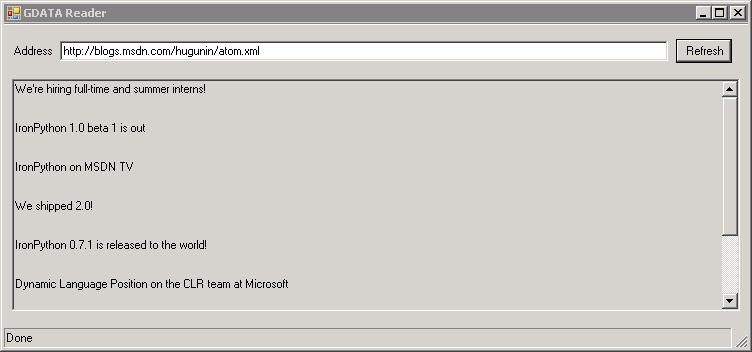
The following screenshot shows the completed GUI displaying the Atom 1.0 feed from Jim Hugunin's blog running under Windows 2003 Terminal Server client (which explains the lack of a XP theme). The Atom feeds from blogs.msdn.com do not have a summary element so our script displays a blank line.


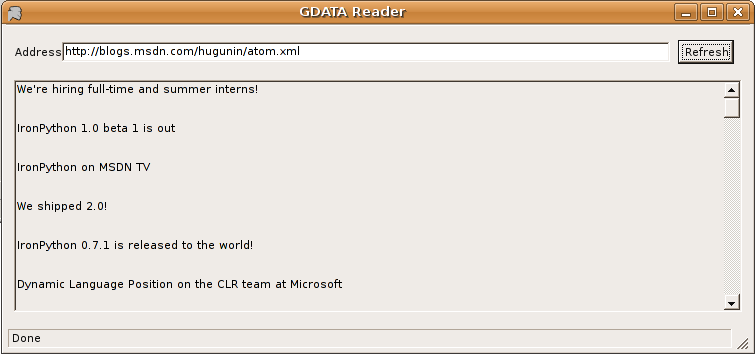
And the next screenshot is the same code running the GUI on Ubuntu 6.06 LTS with Mono 1.1.16.1.


Improving the feed display with a RTF Textbox

Since a GDATA entry contains a link element it would be useful if it was displayed and a user could activate the link to view the entry content in a browser. Some more investigation of the gdata.dll was required to discover how to identify and access the link. The following function does the job for the GDATA reader:

def GetRelatedUri(self, entry, reltype="alternate"):
'''
Get the related uri of reltype from the GDATA entry Links collection.
Returns Uri or None if not found.
'''
uri = None
for link in entry.Links:
if hasattr(link, "Rel"):
if link.Rel == reltype:
uri = link.HRef.Content
else:
if reltype == "alternate":
# No Rel attribute means it's alternate
uri = link.HRef.Content
return uri
I discovered a RichTextBox widget will detect any urls in it's text if the DetectUrls property is set to true. So the the feed display TextBox was replaced with a RichTextBox, and the formatting function for the entry display replaced with a function that created RTF text. To handle a link being clicked the LinkClick event must have a function assigned to it.

self.gdataEntriesRichTextBox.LinkClicked += self.LinkClicked

The code for the event handler:

def LinkClicked(self, sender, args):
'''
Get OS to launch the link using associated application
'''
System.Diagnostics.Process.Start(args.LinkText)

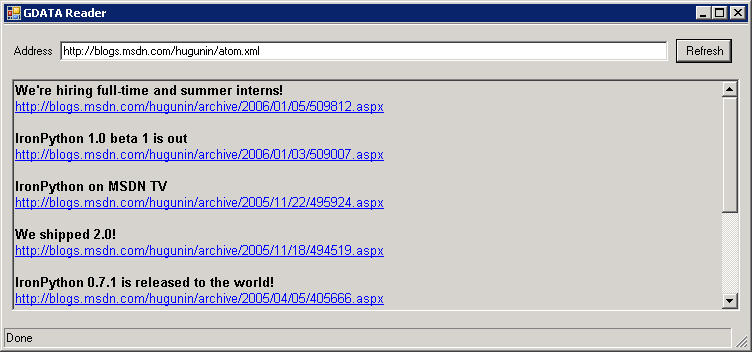
The full source can be found here. The following screenshot shows the completed GUI with RichTextBox displaying the Atom 1.0 feed under Windows 2003 Terminal Server.


The functionality of the RichTextBox widget with the current Mono version of Windows.Forms means that the text formatting is not the same as .NET and the URL's are displayed but are not clickable. Hopefully this will be fixed soon.

The GUI is missing a couple of features like a top menu and About dialog, maybe that's something for another post.

In the next post we will compile the program into a CLI executable.

Tuesday, August 01, 2006

Agile investigation of the GDATA client with IronPython

Updated 13 May 2007 - Modified for new location and packaging of GData libraries.

This is the first coding entry in a series of posts about using IronPython to develop a GDATA reader. You will need to have IronPython RC1 or better installed, and either .NET 2.0 or Mono 1.1.16.1+ installed.

Download the Google GDATA client and unarchive the contents.

Find Google.GData.Client.dll and copy it to the directory you will using for this project.

One of the powerful things you gain from using a dynamic interpreted language for software development is the ability to discover, try and test ideas without the dreaded edit, compile, and debug cycle. To do this we change to the directory with gdata.dll and launch an IronPython interactive console.

ipy.exe -X:TabCompletion -X:ColorfulConsole -X:ExceptionDetail

If you are using Mono, the command is:

mono ipy.exe -X:TabCompletion -X:ColorfulConsole -X:ExceptionDetail

The -X switches are not required but I find they make my life a little easier.

Now we have a console running let's load the Google GDATA client assembly

IronPython 1.0.60725 on .NET 2.0.50727.42
Copyright (c) Microsoft Corporation. All rights reserved.
>>> import clr
>>> clr.AddReference("Google.GData.Client.dll")

To load a non-standard assembly, I need to tell IronPython about it. This is done by importing the the clr module and calling the AddReference method. Now that IronPython knows about the GDATA assembly, I can import from it the Python way. From the API docs, I know the namespace.

>>> import Google.GData.Client as GDClient

This loads the client class with an alias of GDClient so I can save some keystrokes. Now we can inspect the class using some Python introspection tools.

>>> dir(GDClient)
['AlternativeFormat', 'AtomBase', 'AtomBaseLink', 'AtomBaseLinkConverter', 'AtomCategory', 'AtomCategoryCollection', 'AtomContent', 'AtomContentConverter', 'AtomEntry', 'AtomEntryCollection', 'AtomEntryConverter', 'AtomFeed', 'AtomFeedParser', 'AtomGenerator', 'AtomGeneratorConverter', 'AtomIcon', 'AtomId', 'AtomLink', 'AtomLinkCollection', 'AtomLogo', 'AtomParserNameTable', 'AtomPerson', 'AtomPersonCollection', 'AtomPersonConverter', 'AtomPersonType', 'AtomSource', 'AtomSourceConverter', 'AtomTextConstruct', 'AtomTextConstructConverter', 'AtomTextConstructElementType', 'AtomTextConstructType', 'AtomUri', 'BaseFeedParser', 'BaseIsDirty', 'BaseIsPersistable', 'BaseMarkDirty', 'BaseNameTable', 'ClientFeedException', 'ClientQueryException', 'ExtensionElementEventArgs', 'ExtensionElementEventHandler', 'FeedParserEventArgs', 'FeedParserEventHandler', 'FeedQuery', 'GDataGAuthRequest', 'GDataGAuthRequestFactory', 'GDataLoggingRequest', 'GDataLoggingRequestFactory', 'GDataRequest', 'GDataRequestException', 'GDataRequestFactory', 'GDataRequestType', 'GoogleAuthentication', 'HttpFormPost', 'HttpMethods', 'IBaseWalkerAction', 'IExtensionElement', 'IGDataRequest', 'IGDataRequestFactory', 'IService', 'LoggedException', 'QueryCategory', 'QueryCategoryCollection', 'QueryCategoryOperator', 'RssFeedParser', 'Service', 'TokenCollection', 'Tracing', 'Utilities', '__builtins__', '__dict__', '__name__']
>>>

Based on my reading of the API docs, I am interested in the Service and FeedQuery classes.


>>> dir(GDClient.Service)
['Credentials', 'Delete', 'Equals', 'Finalize', 'GServiceAgent', 'GetHashCode', 'GetType', 'Insert', 'MakeDynamicType', 'MemberwiseClone', 'NewAtomEntry', 'NewExtensionElement', 'OnNewExtensionElement', 'OnParsedNewEntry', 'Query', 'QueryOpenSearchRssDescription', 'Reduce', 'ReferenceEquals', 'RequestFactory', 'StreamInsert', 'ToString', 'Update', '__class__', '__doc__', '__init__', '__module__', '__new__', '__reduce__', '__reduce_ex__', '__repr__', 'add_NewAtomEntry', 'add_NewExtensionElement', 'remove_NewAtomEntry', 'remove_NewExtensionElement']
>>> GDClient.Service.__doc__
'Service()\nService(str applicationName)\nService(str service, str applicationName)\nService(str service, str applicationName, str library)'
>>>GDClient.FeedQuery.Uri.__doc__
'Get: Uri Uri(self)\nSet: Uri(self) = value\n'

Using dir we are able to see the methods and properties of the Google.GData.Client Service and FeedQuery classes have. Another nice feature is .NET classes imported under IronPython have an auto-generated __doc__ property that shows the overloaded constructors for the class.

Now we can try to read a GDATA feed. So we need a website with a feed that is Atom 1.0 compliant, for this example we will use http://feedparser.org/docs/examples/atom10.xml
>>> query = GDClient.FeedQuery()
>>> import System
>>> query.Uri = System.Uri("http://feedparser.org/docs/examples/atom10.xml")
>>> service = GDClient.Service("cl","hexdump-gdatareader-0.1")
>>>

Since the Uri property of FeedQuery requires a .NET Uri type, we must import the CLR System module.

Now we can read the GDATA feed and iterate over the returned entries.
>>> feed = service.Query(query)
>>> for entry in feed.Entries:
... print entry.Title.Text
...
First entry title


Based on this investigation of the GDATA client we can now create a simple python script to read a feed (Download).

import clr
import System
clr.AddReference("Google.GData.Client.dll")
import Google.GData.Client as GDClient

def parse(uri, nc=None):
# Create a query and service object
query = GDClient.FeedQuery()
service = GDClient.Service("cl","hexdump-gdatareader-0.1")
query.Uri = System.Uri(uri)
return service.Query(query)

if __name__ == "__main__":
feed = parse("http://feedparser.org/docs/examples/atom10.xml")
for entry in feed.Entries:
print entry.Title.Text,":",entry.Summary.Text

Then run it from the commandline

ipy.exe gdatareader.py
First entry title:Watch out for nasty tricks

Hopefully this post has given you an insight in how IronPython can help with .NET/Mono software development. In the next post we will give the GDATA reader a GUI to make it more useful.

Confessions of a part-time IronPython programmer

On the 27 july 2006 I gave a talk to the the Sydney Python Group (SyPy) about my experiences using IronPython on both .NET and Mono. I promised some people who couldn't attend that I would do a post on my blog that presented the same material. I have decided to present this material as a series of posts, with this post being the index to them.

Index of posts
  1. Agile investigation of the GDATA client with IronPython
  2. A Windows Form GUI for the GDATA reader with IronPython
  3. Deploying the GDATA Reader as an executable
  4. IronPython and ADO.Net Part 1
  5. IronPython and ADO.Net Part 2

The confessions
  • I have been programming in Python since 1997.
  • Python is my favorite programming language.
  • We use it at work as our cross platform scripting language and for most network/web work.
  • I have played with IronPython since Jim Hugunin did the first public release and have experimented with most of the releases that have come from the Microsoft Dynamic Languages IronPython Team.
  • Hope that IronPython will give me the same programming flexibility that the Mark Hammond's CPython win32 extensions gave me. But I want it on all platforms that support .NET and Mono.
The initial experience

Three months ago, I started trying to do "real" things with IronPython and I was disappointed with the results. This is because of my expectation that it would work like CPython and I would have access to the wonderful standard library. This is why people refer to Python as a language with batteries included. At the time dependant on your viewpoint, IronPython had only partially charged batteries and worst case batteries were not included. Yes, you could copy or link the CPython standard library so IronPython could use it, but of course modules that used C extensions will not work. Lot's of my favorite non-standard python modules are very dependant on the Python standard library. You would be surprised how many needed md5.py, and if you want to use Python's high level network libraries like urllib, httplib etc you need socket.py.

But it got better

As I said, this was a few months ago and things have improved, thanks to the IronPython team providing some standard library replacements written in C# and the community providing python wrappers round .NET classes. I also had my eureka moment where I discovered I had a good library at my disposal, the base and extension classes that both .NET and Mono provide.

So lets see what we can do with IronPython.

Requirements
  • IronPython - At the time of writing this it is at RC1. The latest version can be downloaded from here.
  • .NET 2.0 or Mono 1.1.16.1+
  • Your favorite text editor
  • And you may find an IDE like Visual Studio 2005, Visual Express C#, SharpDevelop or MonoDevelop helpful.
The Project

We need something to build, so for the first series of posts we are going to create a quick and dirty GDATA reader. What is GDATA? From Google's website:

"The Google data APIs ("GData" for short) provide a simple standard protocol for reading and writing data on the web. GData combines common XML-based syndication formats (Atom and RSS) with a feed-publishing system based on the Atom publishing protocol, plus some extensions for handling queries."

Also Google provides a GDATA client written in C# as source and an assembly. We will use this client assembly as a helper module in our project. Three posts will document the steps in creating the GDATA reader.

  1. Agile investigation of the GDATA client with IronPython
  2. A Windows.Forms GUI for the GDATA reader using IronPython
  3. Deploying the GDATA reader as an executable
I also intend to do posts on the following:
  1. Embedding IronPython
  2. Database access with IronPython
    1. IronPython and ADO.Net Part 1
    2. IronPython and ADO.Net Part 2
  3. IronPython and the Web.